Thursday, February 8, 2018

PowerHell


So here's another rant about Microsoft inconsistency and UN-usability of their products (sorry but I cannot hold this anymore)..

Since it's been introduced years ago, Microsoft Powershell looked very promising, with its CMDLet approach to reuse scripts, not only for sysadmin tasks, but for almost everything Microsoft.

There is only one problem with it (still nowadays): inconsistency.

The reason why I say this, is because most of the times (I am serious, most of them) I try to use Powershell, I get the famous error message:

The term '[Put your Powershell Module name here]' is not recognized as the name of a cmdlet, function, script file, or operable program.


That seems like a trivial error, so the next thing to do is to install the missing module.

This generally requires a few steps:

  • Figure out which module contains the command you are trying to run (not always straightforward).
  • Figure out which version of the module contains the exact command you try to run (different versions of Powershell (several available by now) might use slightly different syntax or parameters in commands...
  • Install the module (assuming you already installed all its dependencies, otherwise it won't install).


Besides the poor documentation about the different modules for each version, etc., the main issue is that even following the above steps meticolously, won't guarantee that you can finally run your command.

In fact, it turns out that doing a quick search on my machine for "Powershell", I have more than 10 folders containing Powershell modules...

C:\Program Files\WindowsPowerShell
C:\Program Files (x86)\WindowsPowerShell
C:\Program Files\Microsoft Azure Active Directory\Powershell
C:\Program Files\Microsoft Application Insights\Status Monitor\PowerShell
C:\Program Files (x86)\Reference Assemblies\Microsoft\WindowsPowerShell
C:\Program Files (x86)\Microsoft SQL Server\140\Tools\PowerShell
C:\Program Files (x86)\Microsoft SQL Server\130\Tools\PowerShell
C:\Program Files (x86)\MSBuild\Microsoft\VisualStudio\v14.0\Web\Powershell
C:\Program Files (x86)\Microsoft Visual Studio 14.0\Common7\IDE\Extensions\jgvvk40b.4cw\Starterkit\Extensions\powershell
C:\Program Files (x86)\Microsoft Visual Studio 14.0\Common7\IDE\Extensions\4gsxi3yc.1xk\Starterkit\Extensions\powershell
C:\Program Files (x86)\Microsoft Visual Studio 14.0\Common7\IDE\Extensions\uqch3mzq.qv5\Starterkit\Extensions\powershell
C:\Program Files (x86)\Microsoft Visual Studio 14.0\Common7\IDE\Extensions\5rr1fg2l.ml1\Snippets\PowerShell

And of course each one is not visible to the others..

The obvious questions are: why each single (Microsoft) application installs yet another folder and cannot reuse a main one? And why 2 versions, 32 and 64 bit? And why the new installation can't take care of cleaning up/upgrading what's already installed?

Don't even bother answering, as nothing new here...

And on top of this PowerHell, I decided to skip my machine altogether, and rely on the "official" Microsoft Cloud Shell, which is basically Powershell baked into Azure.

Well, surprise surpise, even there, running the command "New-AzureADPolicy ..." returns the same old error:
The term 'New-AzureADPolicy' is not recognized as the name of a cmdlet, function, script file, or operable program.


You would think that Azure Active Directory CMDLets are installed in Azure.. wrong!

At least not for the AzureADPreview one..

Fair enough, so I ran the command: Install-module AzureADPreview

No luck, same error, even after installing the right module...

Now, eventually after lots of wasted time, I managed to run the command inside Powershell ISE (yet another different way of running Powershell scripts...), and have my policy created in Azure...

But still, go figure, Microsoft...

Tuesday, February 6, 2018

Microsoft Confusion...


I mentioned before about the Azure and Microsoft Graph APIs, and the fact that Microsoft recommends to use the latter one.

In fact, every page of documentation related to the Azure Graph API contains this disclaimer:

We strongly recommend that you use  Microsoft Graph  instead of Azure AD Graph API to access Azure Active Directory resources. Our development efforts are now concentrated on Microsoft Graph and no further enhancements are planned for Azure AD Graph API. There are a very limited number of scenarios for which Azure AD Graph API might still be appropriate; for more information, see the  Microsoft Graph or the Azure AD Graph

I can see this disclaimer in articles dated back as much as June 2017.

Still, as of now (February 2018), the Microsoft Graph API only supports a tiny bunch of operations in its official version 1.0, and a few more in its beta version, while most of the operations that are supported on the Azure Graph API (soo many), are still not supported at all in the Microsoft Graph API (beta or not).

And here is another annoying detail: even though the documentation states that
Microsoft Graph currently supports two versions: v1.0 and beta.
v1.0 includes generally available APIs. Use the v1.0 version for all production apps.
beta includes APIs that are currently in preview. Because we might introduce breaking changes to our beta APIs,
we recommend that you use the beta version only to test apps that are in development; do not use beta APIs in your production apps.
In reality the v1.0 is really so limited that it cannot be used, except for a few operations.

One simple example is listing your AAD App Registrations (you can easily reproduce this from the Graph Explorer); if you run this query:

GET https://graph.microsoft.com/beta/applications

You will see the list of AAD App Registrations correctly returned as JSON

However, if you switch to the v1.0:

GET https://graph.microsoft.com/v1.0/applications

This is what you get:
{
    "error": {
        "code": "BadRequest",
        "message": "Resource not found for the segment 'applications'.",
        "innerError": {
            "request-id": "6bf2f498-fe90-464c-9b83-084d4cc316f9",
            "date": "2018-02-06T13:20:25"
        }
    }
}
So, yeah, after almost a year of using the beta and "prodcution ready" v1.0, the Microsoft Graph API is still very unusable, and the Azure Graph API remain the only reliable API to query AAD programmatically...

And unfortunately, I have to admit, this is not surprising from Microsoft...
:(

Friday, December 22, 2017

Monetize your APIs with Azure API Management

In a world of Microservices and APIs, it might come a time when you realize you have some service that others might want to use.

Azure API Management was made for this purpose, to centralize the management of all your APIs.

It allows an easy tracking of usage, thanks to its subscription-key approach, with a unique key per user; so you can easily charge money to use your APIs.

But one caveat is that the user base in API Management is a "standalone" list, not necessarily aligned with Azure Active Directory (where you probably will have already all your users).

So if you want to align these two worlds, as of now you need to be creative, bend some concept, and implement a few tricks, as explained here.

Let's start from the basic, that is how Azure Active Directory works behind the scenes.

Here you can see the basic entities of Azure Active Directory for an Application: the App Registration and the Enterprise Applications; from these two entry points in the Azure portal you can manage almost everything about your App authentication.

Now, if you want to have some Customer specific division in your Azure Active Directory, you need to be a bit creative, and mis-use some entity to achieve your needs (I was hoping that AAD B2B or B2C would help achieving this, but apparently that is not the case so far).

As you can see in the above picture, you define CustomerA and CustomerB in AAD as Security Groups; then you can add to these group all the users from each Company, which you previously invited to your AAD as described here.

At this point you edit your Application Manifest in the AAD Registration and add two new AppRoles: CustomerA and CustomerB.

Then you open the Enterprise Applications menu of the AAD section in the Azure portal, and assign those new AppRoles to your users individually (behind the scenes through a AppRoleAssignment).

Now, since you use API Management, you need an App Registration in AAD also for its Developer portal (this is where your API consumers will login in order to learn about and test your APIs).
Once you did that, you can switch to the API Management Publisher portal, and import your API, as described here.


You will also need to create an Authorization Server in the Publisher Portal, so that it can use the OAuth2 Permissions in AAD, as shown in the picture above.


Now, to make things a bit more complex, you need to have your API users to register on the API Management Developer portal (as of now, "invite" for some reason does not work, so you have to rely on them to do it...).

Once they did register, and you have your users in API Management, you can create the Customer Groups as you did in AAD, choosing to "Add groups from AAD". in the Product section of the API Management Publisher portal. under the Visibility tab.

Obviously you need to have a Product for each Customer, with the same names as the Groups you previously created. That will allow for an easy match and assignment without confusion, as you can see in the picture here below.


Once you performed all these steps, you are now able to use Role-Based Authorization as usual at your Operation (action or method) level in your APIs, as shown here below.

Limit access to this Operation only to CustomerA users:

Limit access to this Operation only to CustomerB users:


Allow access to this Operation to both CustomerA and CustomerB users:


And thanks to the API Management Analytics section in the Publisher portal, you can see all details about usage of your APIs, by user, as well as Customer.

Now, the only work left for all this to be really useful and easy, is to automate it, of course!

Luckily API Management provides a REST API that you can use, more or less like the Azure Graph API.

But I will tell you about it in a next post.
;)


For now, Happy Holidays!

Tuesday, December 19, 2017

Run your API behind Azure API Management

In order to run your API behind Azure API Management there are a few important steps to take.

You first open the API Management Publisher Portal, this can be done from the Azure Portal by selecting API Management services and your service instance.

If you did not create yet your instance, refer to this article.

Import API

If you want to import your API (rather than creating everything manually), it is essential that you have a correct Swagger definition. I wrote a post about it, so if not sure, have a look here.
You can import definitions in the SwaggerWADL and WSDL format.

Assign a Product

Once you imported the API in API Management, you need to assign it to a Product, so users can subscribe to it and obtain their personal Subscription Key, required to access your API.
You can either use the existing Starter or Unlimited, or create a new one.

Setup Authorization Server

Now you can create the Authorization Server that you will use in the Developer Portal of API Management. Once created, you can assign it to your API.


Azure Active Directory Developer Portal App Registration

You will need to take care of the Azure Active Directory App Registration as well, also in the above link. In particular make sure that you add the Authorization Code Grant URL generated by the Authorization Server to the ReplyURLs list of the AAD App Registration for the API Management Developer Portal; you also need to add the Application ID and created secret Key of the API Management Developer Portal to the Client Credentials fields as shown here.


While there, under the Permissions menu blade, select your Backend API and all the appropriate permissions for the Developer Portal.

Setup SSL Certificate

If you use Mutual Client Authentication with SSL Certificate, you will need to upload your certificate to API Management, and assign it to your API in the Security section. Once you did that, you can verify in the API Management Policies section that you have an Inboud policy to provide your certificate's Thumbprint to your API.
Then you might want to add your Certificate Validation IAuthorizationFilter to your API, where you can check anything you want from the SSL Certificate (sample code here).


Setup C.O.R.S.

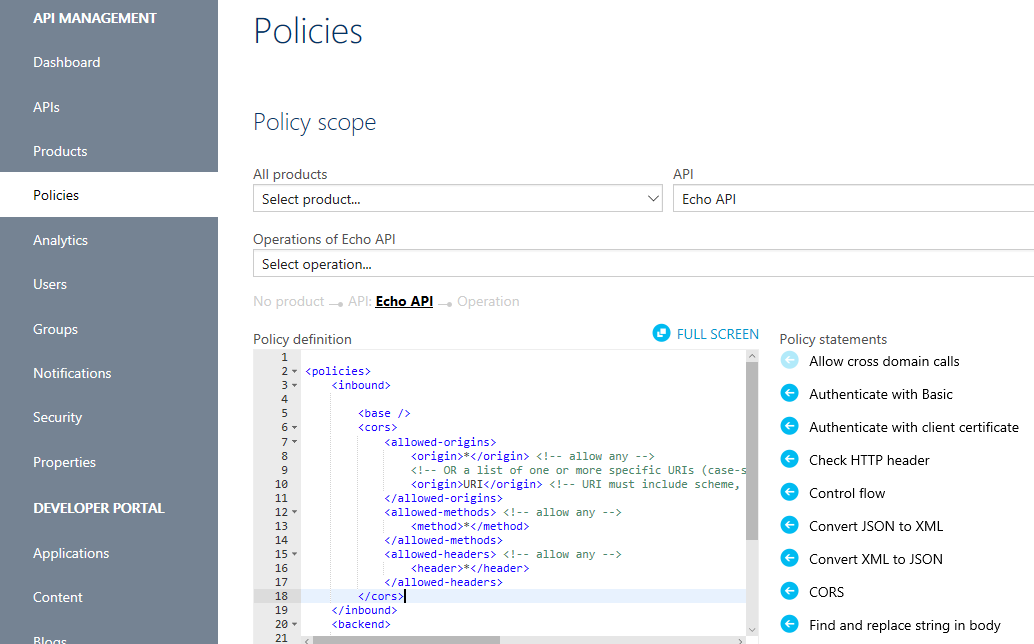
You might want to add another policy in API Management to allow C.O.R.S., depending on your API clients. You can simply select the CORS policy in the list.


Test in Developer Portal

If everything is done properly you should now be able to open the API Management Developer Portal and test your API, providing automatically the correct Subscription Key, and obtaining the OAuth2 Token from the created Authorization Server.


Tuesday, December 5, 2017

Devil is in the (Owin/Katana Redirect) Details

Some time ago I wrote about a bug that took a month to be solved, involving a 401 - Unauthorized Access to an Azure AppService.

After lots of troubleshooting, that issue got a solution from Microsoft support with a little code snippet that handles the AAD redirection at run-time, rather than relying on the config file value.

Turns out that this code snippet caused another issue, namely a Owin/Katana bug.

This time the same AppService (that runs just fine on Azure), cannot run anymore locally under IIS, as it generates an infinite redirect loop between the Azure login page and the AppService.

After another month of troubleshooting with Microsoft support, bouncing from one team to another (AppService, IIS, AAD, you name it), they finally were able to reproduce the core issue, which eventually got acknowledged as an official bug (I will update this post with the link to it as soon as I will receive it from Microsoft support):

Symptom:
The MVC project stopped working in IIS 10, and was entering into an infinite loop.

Cause:
There is a problem with OWIN and IIS when specifying either a CallbackPathURL or a Redirect URI. After the authentication happens > OWIN receives the response and drops the cookie > because of that the user is being set as “Not Authenticated”, as there is no cookie to trace the session that just happened. At that point is when the infinite loop starts. There is a problem with Microsoft.Owin.Host.SystemWeb and is being considered as a bug and being investigated. Seems that when mixing usage like HttpContext.GetOwinContext().Response.Cookies and HttpContext.Response.Cookies in some cases OWIN cookies are "lost".


Resolution:
For now as a work-around if you could not specify any callbackPath or Redirect URI in the request and let Azure decide where to send the response it will work just fine for your project in IIS.


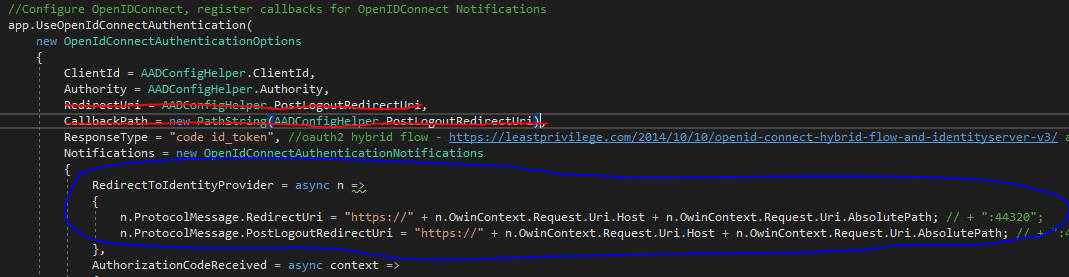
So, long story short: if you have multiple Domains in your Azure AppService, and you implement the code snippet shown before, you have to remove the "RedirectUri" and "CallbackPath" from the default "OpenIdConnectAuthenticationOptions" created for you by the ActiveDirectory Client NuGet package, and then you can run your AppService locally under IIS as usual.

In the picture below you can see the red lines over the code to be removed, and the blue line around the code snippet to fix the issue reported here.


Tuesday, November 21, 2017

Fix your Swagger Definition!


So you created your shiny .NET REST API, and added the NuGet package Swashbuckle.Core which generated the SwaggerConfig.cs file in the App_Start of your API project.

All good, now you can browse your API definition and even test your API operations!

So you think you have a OpenAPI Specification file now... well, hold your horses!

Turns out that the .NET implementation with the SwaggerConfig.cs is not so strict on enforcing the Specification, and will produce a JSON that contains errors when checked for compliancy.

To make sure that your Swagger definition is indeed OpenAPI Specification compliant, you can download your generated Swagger JSON and upload it to either SwaggerHub or Swagger Editor.

If any error shows up there after parsing your JSON into YAML, you first have some work to do to fix those.

You might see errors such as "Semantic error at paths ... Equivalent paths are not allowed.", "Schema error at paths ... should NOT have additional properties", "Schema error at paths ... should be equal to one of the allowed values: ...", and so on.

You can easily troubleshoot those, and find all answers you need in order to fix them (Stackoverflow as usual will help you a lot).


Tuesday, November 7, 2017

7 Things I Learned That Made Me a Better Programmer

I bumped into a nice article, which tells stuff very well known to me and my colleagues nowadays.

However it is always good to share it, as it is too easy to get caught in the code details and forget the "big picture".

Consider it like a basic programmer wisdom checklist:

https://blog.toggl.com/how-to-be-better-programmer/

eCommerce Marketplace Integration: Scale Faster with ChannelEngine, Tradebyte, Channable & ChannelAdvisor-Rithum

Estimated Reading Time:   4 minutes Key Takeaways An owned eCommerce website is important, but it usually requires heavy investment in traf...