Wednesday, July 26, 2017

NoSQL in Azure: Cosmos DB

NoSQL technologies have been around for a while now; in the past I wrote about both MongoDB and Graph Databases.

Recently Microsoft introduced the Cosmos DB offer within its Azure Cloud, where Cosmos DB is not a Database, but instead a set of Common Data Services for NoSQL DBs in the Cloud (such as scalability, distribution, partitioning, etc), described as a “globally distributed database service designed to enable you to elastically and independently scale throughput and storage across any number of geographical regions with a comprehensive SLA. You can develop document, key/value, or graph databases with Cosmos DB using a series of popular APIs and programming models”.

Azure Cosmos DB currently supports the following NoSQL DBs:
  • DocumentDB
  • MongoDB
  • Table API
  • Graph API

The price unit in Cosmos DB is called Request Unit, which is defined as: 

A Request Unit (RU) is the measure of throughput in Azure Cosmos DB. 1 RU corresponds to the throughput of the GET of a 1KB item”.

There is a RU Calculator to estimate the cost of your Cosmos DB.

More information on Cosmos DB can be found here.

A nice detail is that all experimenting with Cosmos DB can be done locally with the Azure Cosmos DB Emulator, without having to spend any money on Azure (at least during the initial development).

MongoDB

MongoDB is probably the most mature NoSQL DB in the market. It has been used for years now, and offers flexibility of data storing, great performances (especially on Big Data).

MongoDB is a Document database which stores data in flexible, JSON-like (BSON) documents, meaning fields can vary from document and data structure can be changed over time.

MongoDB is now part of the Cosmos DB offer, which makes it easier to integrate it in a Microsoft environment, especially on Azure.

An example of a MongoDB document (a Row in a RDBMS) is here:
{
  "id": "WakefieldFamily",
  "parents": [
      { "familyName": "Wakefield", "givenName": "Robin" },
      { "familyName": "Miller", "givenName": "Ben" }
  ],
  "children": [
      {
        "familyName": "Merriam",
        "givenName": "Jesse",
        "gender": "female", "grade": 1,
        "pets": [
            { "givenName": "Goofy" },
            { "givenName": "Shadow" }
        ]
      },
      {
        "familyName": "Miller",
         "givenName": "Lisa",
         "gender": "female",
         "grade": 8 }
  ],
  "address": { "state": "NY", "county": "Manhattan", "city": "NY" },
  "creationDate": 1431620462,
  "isRegistered": false
}

The main advantage of using MongoDB within Cosmos DB is the better integration in terms of development and deployment; in fact, using MongoDB within Cosmos DB removes the need for a VM to host the MongoDB service, and Microsoft tools such as the Cosmos DB Emulator will make it easier to build MongoDB solutions that run both locally and within Azure in a matter of clicks.

A basic tutorial on MongoDB in C# is here.

DocumentDB

DocumentDB is the Microsoft Azure offer in alternative to MongoDB; a lot has been written about the comparison with MongoDB, and so it’s out of scope here.

The main advantage of using DocumentDB instead of MongoDB is the better integration with Microsoft tools and required development libraries, even though now that MongoDB is supported by Cosmos DB this gap gets shorter and shorter.

For the RDBMS fans out there, it’s worth mentioning that DocumentDB introduced a feature called Document DB API SQL, which allows standard SQL syntax to be used to query the DocumentDB NoSQL database (btw, see the contradiction?).

Documents (Rows of data) in DocumentDB are like those in MongoDB, except the Microsoft product works with plain JSON instead of BSON.

A basic tutorial on DocumentDB in C# is here.

Graph API

A graph is a structure that's composed of vertices and edges. Both vertices and edges can have an arbitrary number of properties. Vertices denote discrete objects such as a person, a place, or an event. Edges denote relationships between vertices. For example, a person might know another person, be involved in an event, and recently been at a location. Properties express information about the vertices and edges.

Graph Databases have been around for some time now (especially since Social Media companies such as Facebook and Twitter became popular). A notable example of a Graph Database is Neo4J.

Azure Cosmos DB offers a Graph API as the Azure Graph DB offer; the languages used to query Azure Cosmos DB are the ApacheTinkerPop graph traversal language, Gremlin, or other TinkerPop-compatible graph systems like ApacheSpark GraphX.

Again, the tooling integration for the Microsoft product is much better than its graph DB competitors; when it comes to the graphical representation of the graph data, something nicely supported by Neo4J out of the box, Microsoft offers an open source client application called Graph Explorer, which allow easy querying and displaying of the data.

An example of a graphical representation of a Graph dataset.

A Gremlin query to create a Vertex as:
g.addV('person');

A Vertex can have properties such as:
g.addV('person').property('id', 'thomas').property('firstName', 'Thomas').property('age', 44);

You can add an Edge such as “knows”, for each friend of Thomas:
g.V('thomas').addE('knows').to(g.V('ben'));

You can get all Vertex and Edges by running this query:
g.V(); g.E();

Then you can run a traversal query to show all the Friends of Thomas:
g.V('thomas').outE('knows').inV().hasLabel('person');

You can go as far as retrieving in a simple query all the Friends of Friends of Thomas:
g.V('thomas').outE('knows').inV().hasLabel('person').outE('knows').inV().hasLabel('person');

CATCH: Edges are one way directional, for example, “PersonA knows PersonB”, does not mean that “PersonB knows PersonA”, unless you add a second Edge to represent this.

For the usual RDBMS fans, you can read this introduction, and keep in mind that there is a nice document on how to “translate” SQL queries into Gremlin queries.

And here is the full Gremlin syntax documentation.

Table API


Azure Cosmos DB provides the Table API for applications that need a key-value store with flexible schema, predictable performance, global distribution, and high throughput. The Table API provides the same functionality as Azure Table storage, but leverages the benefits of the Azure Cosmos DB engine.

You can continue to use Azure Table storage for tables with high storage and lower throughput requirements. Azure Cosmos DB will introduce support for storage-optimized tables in a future update, and existing and new Azure Table storage accounts will be upgraded to Azure Cosmos DB.

More information about Table API can be found here.

Tuesday, July 11, 2017

Azure Apps Provisioning to External Users

So, you’re finally deploying your apps to Azure like there’s no tomorrow, through a solid CI and CD process, and everyone is happy about it.

Then you realize you still have one challenge: you need to provide those apps to your customers in a smooth but secure way, just like you’ve been doing for years with Active Directory Federation, where the customer logs onto his own AD, and from there he can access your apps.

How to achieve that in Azure?

Turns out that (after solving a few puzzles – we know MS documentation, don’t we) it is quite simple!

First you need to invite your customer to join your Azure Active Directory; this is done in the New Portal by opening the Azure Active Directory “menu blade”.


Then click on the menu item Users and groups.


Then click on the menu item All users.


Here you can invite an external user to join your AAD as a Guest; this will give your customer enough permission to use your Azure deployed apps (that you assign them permissions to), without being able to access your other Azure resources.

NOTE: It is also possible from the Classic Portal (only) to add an external user by creating a full user within your Active Directory, but that’s out of scope here.

Now click on the New guest user link.


Here you will simply write your customer email address, and optionally a personal message to be included with the invitation.

Once this is done, and email message will be sent to your customer inbox, looking like this.


Once your customer will click on this link he’ll get to the URL http://myapps.microsoft.com, where he will see an empty page!

:)


Yes, first you need to assign permissions to some app that you want your customer to be able to use.

This can be done in the Azure Portal, within the Azure Active Directory section, under Enterprise Applications. Select the Application you need to assign, then click on the Users and groups menu item.


From here you can click on the Add user button.


There you will be able to select the user(s) you want to assign to the App, and if any AppRole has been defined in the App Manifest, assign those as well.

Now your customer can access the same page again, but now he will see a list of allowed Apps.


And that’s it!


Monday, June 26, 2017

Azure Links


For those who are not familiar with Microsoft Azure, it is a cloud computing platform and infrastructure designed for building, deploying, and managing applications and services through a global network of Microsoft-managed data centers.

It provides SaaS, PaaS and IaaS services and supports many different programming languages, tools and frameworks, including both Microsoft-specific and third-party software and systems.

Here are some useful resources when working with Azure.


Azure Icon Set
To have consistent documentation for your presentations and diagrams, you can use the following symbols:

Microsoft Azure, Cloud and Enterprise Symbol / Icon Set - Visio stencil, PowerPoint, PNG, SVG


Azure Services Status
Azure Service Status page.

Visual Studio Team Services Status page.


Architecture & Best Practices
Azure Architecture Center

Azure Application Architecture Guide

Architecture blueprints

Azure solution architectures

Azure reference architectures

Microsoft Cloud Design Patterns

Best Practices for Cloud Applications


Amazon Web Services
For those new to Azure but with AWS expertise, you can follow these links:

Azure for AWS experts

Azure vs AWS

Friday, June 16, 2017

Visual Studio Online, CI and CD in Azure

CI (ContinuousIntegration) and CD (Continuous Delivery) are nowadays solid best practices in Software Development, aimed at reducing at a minimum the risks involved with releasing software.

The idea is simple: the more often you release your software, the more chances are you won’t bump into deployment issues (ie: problems during the release).

Microsoft TFS (Team FoundationServer) has been used for long to address this needs, but since a few years (in particular since CloudComputing and Azure became a trend), it has gradually been replaced by its online version VSTS (Visual Studio Online Team Services).


While setting up CI and CD in VSTS is not rocket science, it helps to know some basic concepts before starting.

To start setting up Continuous Integration, you need to access the Build & Release tab in your VSTS instance.


NOTE: One important thing to keep in mind is that Build and Release are separate activities, and to have a full CI you need to configure them both individually.

Here you will be able to manage all your Build Definitions, as shown here; if no definition is present, you can easily create one.


Once you click on an existing Build Definition, you will see the log of your previous builds, with their version, status, code branch, etc.


If you click on the Edit button on the top right of this page, you will open the Build Definition in Edit Mode, so you can configure its steps (or Tasks).


Here, as you can see, you can configure common Tasks, such as Get source (from Git or other repositories), NuGet restore, and several other common Build Tasks.

Setting up those Tasks is straightforward; you just need to specify the configuration details based on your application.

NOTE: The Publish part of the Build Definition could be misleading at first, as everything that gets “published” is placed within VSO for the subsequent Release Definition to pick it up.

Basically Build creates the Artifacts within the $(build.artifactstagingdirectory) folder of VSTS, and Release will pick them up from there, and deploy them to the final environment.

So, once the Build is properly configured you can run it and verify that everything works fine (the Get sources Task will guarantee that a Build is automatically triggered whenever there is a Commit in Source Control for the selected code branch, or you can always Queue a new build manually).

You can see the progress of each build by opening its page, as shown here.


Next step is to configure the Release Definition.

By clicking on the Releases tab on the top of VSTS, you open the list of Release Definitions.


If no Release Definition is present, you can create one, and then you start by adding an Environment where you want to deploy your application, and then configure Tasks similarly to what you did in the Build Definition.


Here also you have plenty of common Tasks used for deployment, such as Configuring an Azure App Service or Slot App Settings, Deploy, etc.

When the Release Definition is configured properly, after each successful Build, a Release will be automatically triggered, and if all Tasks are successful your application will be deployed to your environment.


And that’s it, now you can enjoy your CI and CD on VSTS!

Tuesday, May 30, 2017

AD vs AAD (Active Directory vs Azure Active Directory)

Comparing AD vs AAD is a bit like comparing apples and oranges; they are two very different technologies used for different scenarios and needs.

As organizations look to move a great deal of their infrastructure to Azure, Active Directory ceases to become the right option
Azure AD therefore, becomes the solution that is recommended.

This post is aimed at explaining the main reasons behind this statement.

On-Premise Active Directory

Windows Server AD offers 5 core services.

· Active Directory Domain Services (ADDS)

· Active Directory Certificate Services (ADCS)

· Active Directory Rights Management Services (ADRMS)

· Active Directory Lightweight Directory Services (ADLDS)

· Active Directory Federation Services (ADFS)


Those 5 services together make up the entirety of on-premises AD. When most of us talk about AD, we’re mostly talking about ADDS.

None of those 5 services are available in Azure AD.

When you think about Active Directory you're talking about a true directory service that has a hierarchical structure (based on X.500) that uses DNS as its locator mechanism and can be interacted with via LDAP. In addition, Active Directory primarily uses Kerberos for authentication. Active Directory enables organizational units (OUs) and Group Policy Objects (GPOs) in addition to joining machines to the domain, and trusts are created between domains.

The fundamental component of Microsoft’s identity management platform is Active Directory Domain Services (AD DS).


High-level Microsoft cloud identity management architecture.


Active Directory Domain Services provide secure, structured, hierarchical data storage for objects in a network such as users, computers, printers, and services. Active Directory Domain Services provide support for locating and working with these objects.


Azure Active Directory

Azure AD, while having some aspects of a directory service, is an identity solution and allows users and groups to be created, but in a flat structure without OUs or GPOs. You can't join a machine to Azure AD. There's no Kerberos authentication, and you can't query it via LDAP.

An Azure AD does have a domain name; it does contain users and groups. It contains Service Principals, like on-premises AD, that represent applications. But there is no tree of domains, no trusts between domains or forests. Indeed, there are no forests.


Azure AD is focused around identity throughout the Internet, where the types of communication are typically limited to HTTP (port 80) and HTTPS (port 443) and are used by all types of devicesnot just corporate assets. Authentication is performed through several protocols such as SAML, WS-Federation, and OAuth. It's possible to query Azure AD but instead of using LDAP you use a REST API called AD Graph API. These all work over HTTP and HTTPS.

Azure AD is a gargantuan multi-tenant service that is the identity and access management (IAM) system underpinning all of Windows Azure, including Microsoft Online Services (MOS)

The copy of Azure AD you can see and manage (your tenant) is a teeny little instantiation of a much larger whole, as Figure below shows.
You're Just One of More Than 1.5 million Azure Active Directory Tenants

Functional Comparison of Active Directory Domain Services vs. Windows Azure Active Directory

This big difference of technologies can be bridged with a Hybrid Network that connects the On-Premises AD to the Azure AD, hence allowing to use the best of the two AD.

A video is available on Channel 9 to display these differences.

If only LDAP authentication is supported by an existing application, the application must be updated to support federation, and an instance of Active Directory (either On-Premise or in an Azure Virtual Network) must be connected to Azure AD.

Microsoft Azure Active Directory Premium Features

The features that make Azure AD a competitive cloud identity management solution are licensed via the Premium Edition.

The premium feature set of Azure Active Directory is focused around four areas:

·         Branding and Customization – The Azure AD sign-in pages and Access Panel can be branded to resemble the organization’s brand and IT’s look-and-feel for corporate services and applications. This includes replacing the default Azure AD logos with custom logos.

·         Group Based Access Control – Groups can be used to control access to applications federated with Azure AD. In addition, users can request to join groups that grant access to applications and group owners can approve requests via the Azure AD Access Panel. Administrators can also delegate end users the ability to create and manage their own groups.

·         Self Service Password Management – Self-service password recovery for users that have their password stored solely in Azure AD. Users who login via federated authentication (e.g. AD FS) or via a password synchronized with Azure AD Directory Synchronization cannot take advantage of this feature.

·         Multi-Factor Authentication – Users can be required to register for and provide a second factor of authentication (SMS (text) message, voice call, or push notification to an app) at login time.

·         Advanced Reporting – The advanced security reports available in the premium version of Azure AD provide common IT security reports centered on application and device usage and security analytics that detect irregular and suspicious activity.


CONCLUSIONS

Microsoft advertises the free edition of Microsoft Azure Active Directory, and the free edition is a very capable platform for federation with cloud applications. The hidden costs often lie with AD FS, the need for the Azure AD Premium edition, and in translating existing identity management processes to function in the age of the cloud.


References

Choosing the Right Active Directory Framework for Cloud Apps
http://resources.onelogin.com/WP-Choosing-the-Right-Active-Direcetory-Framework-for-Cloud-Apps.pdf

Azure Active Directory vs. On-Premises Active Directory
http://windowsitpro.com/azure/azure-active-directory-vs-premises-active-directory

Differences Between Active Directory and Azure Active Directory
https://jumpcloud.com/blog/active-directory-azure-active-directory/


How Azure AD Different Then Active Directory and Azure ADDS (Azure Active Directory Domain Services) and AWS Directory Service
https://www.linkedin.com/pulse/how-azure-ad-different-active-directory-domain-services-eray-altili


Azure Active Directory Pricing
https://azure.microsoft.com/en-us/pricing/details/active-directory/

Thursday, April 6, 2017

Azure API Management Export Bug By Design


I’ve been playing with Azure API Management for some time now, creating POCs and lately using it for work projects.

It is a great tool, which allows you to centralize all your Microservices or APIs, both public available or inside your On-Premise network.

Among the many features it offers, there is an Import tool that allows you to create an API definition from a Swagger or WSDL file.

And as you would expect from a great tool, there is also an Export tool that allows you to create a Swagger file from an existing API definition.

All great except, when you export a definition from API Management

you cannot re-use that definition into any API Management service anymore.

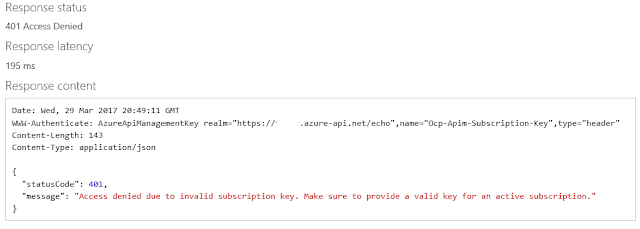
In fact, by design (see the answer from Microsoft Azure Support below), the tool will change your definition, duplicating parameters, and when you import it again, your new API will throw an error when tested:


Access denied due to invalid subscription key. Make sure to provide a valid key for an active subscription

So be aware of this “by-design” unexpected behavior (shall we call it bug, really?), and make sure you clean up your exported file before (or after through the Publisher portal) re-importing it into a new API Management instance.

Here’s the answer from Microsoft Azure Support:

“Looks like you are right. I just imported your swagger file…. Then deleted all those subscription-key parameters and saved those changes. Then when I go to export that API the subscription-key does get injected into the query string parameters again. I’ll open up a ticket with the product team and give them the repro. I’ll keep you updated on the investigations.”

However…

“The product team is telling me that this is by design. We add the Ocp-Apim-Subscription-Key and subscription-key parameters. They tell me that the exported swagger file targets clients that want to call the API and that if clients are going to call the API then they have a chance to pass in their API Subscription key using either of those parameters.
They state that the Import/Export API feature isn’t a good backup/restore type of functionality. They do have other functionality that supports backup/restore of the APIM service: https://docs.microsoft.com/en-us/azure/api-management/api-management-howto-disaster-recovery-backup-restore


But all I wanted was to export an API definition from the Export tool, and import it through the Import tool, not backing up and restoring the whole API Management service… 

eCommerce Marketplace Integration: Scale Faster with ChannelEngine, Tradebyte, Channable & ChannelAdvisor-Rithum

Estimated Reading Time:   4 minutes Key Takeaways An owned eCommerce website is important, but it usually requires heavy investment in traf...